Attendance lists
In SuperInvite, both the club and the people paying can get a good overview of attendance. By marking which day or days the products you set up represent, SuperInvite also automatically knows which dates the activity applies to.
Those who have registered get an overview of all their activities in their activity calendar, and can let the club know whether they're coming or not. The club gets real-time lists of everyone participating, and can take roll call where parents/guardians are notified whether the child has shown up or not.
Here's how to do it:
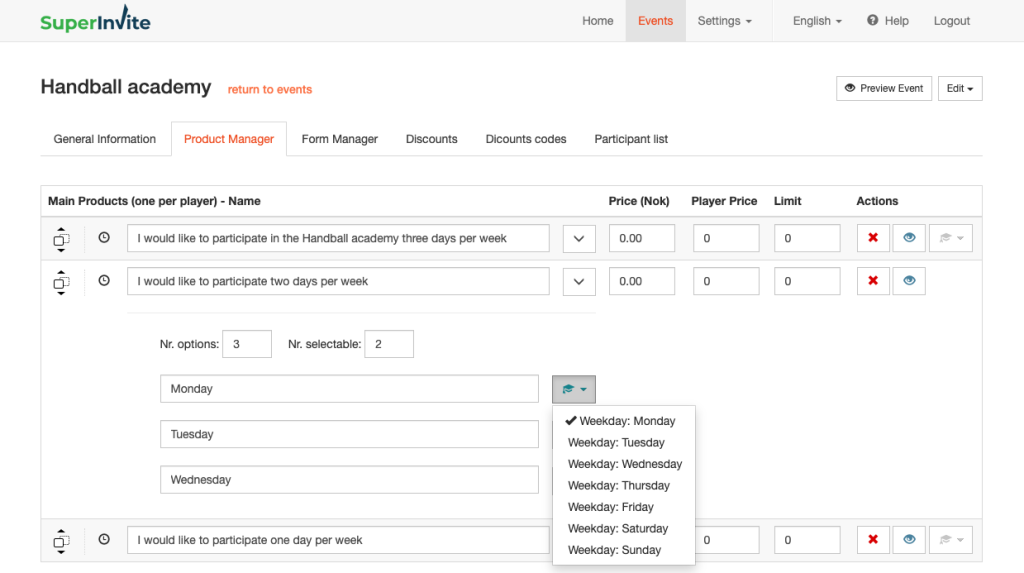
- On "Options", to the right of each product you'll see an icon with a "hat" on it. When you click it, you'll see all the weekdays in a week.
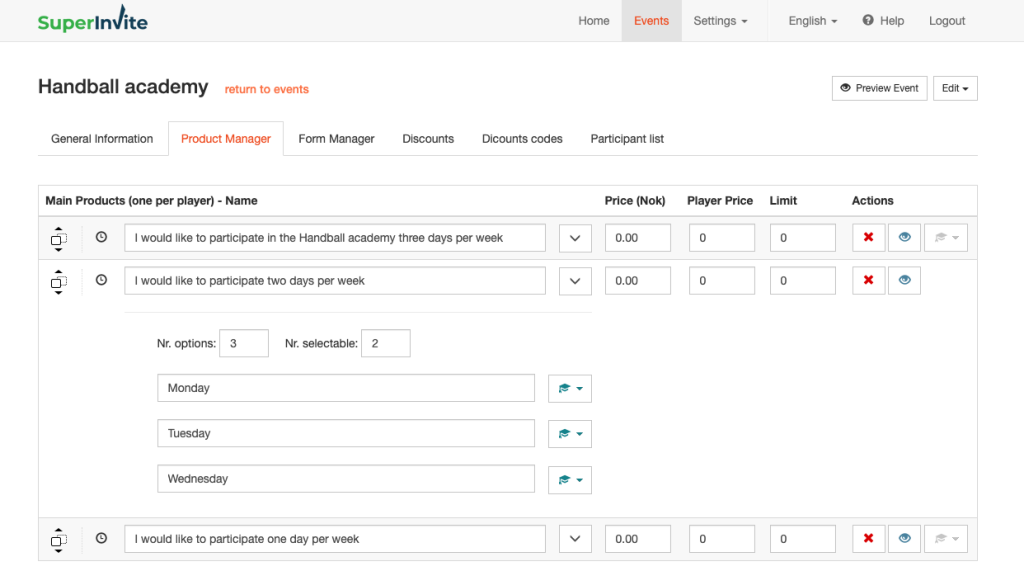
- Next, choose which day or days the product applies to. You can also set weekdays on individual products.
- Once you've set a weekday on all your products, go to the "Attendance list" tab. Here you'll see a unique link for this invitation. This link gives you an overview of who's participating on all upcoming days.
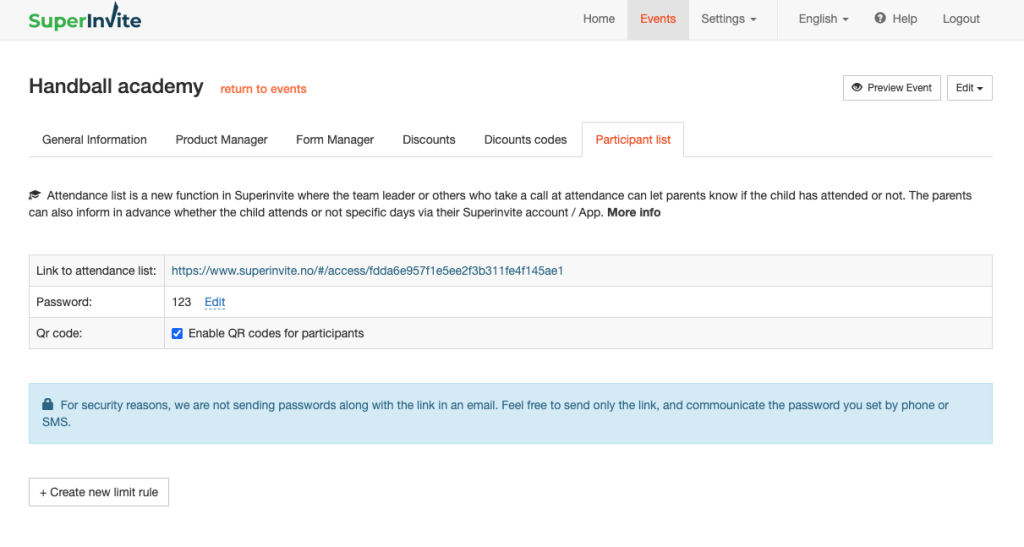
Note: The link is password-protected for security and privacy reasons, so remember to set a password under the link. For security reasons, we recommend not sending the password together with the link in an email. Send only the link, and provide the password you set via SMS or verbally.
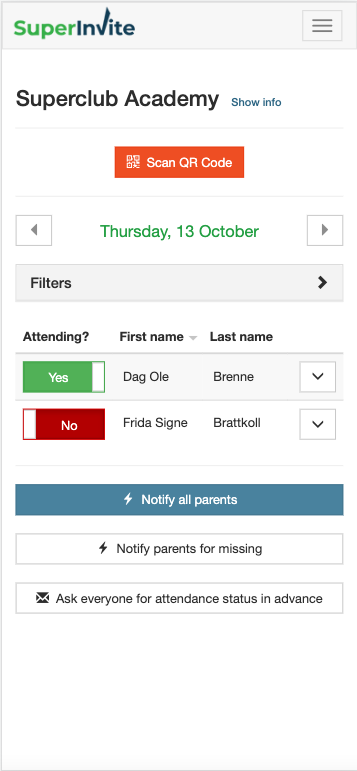
- When someone clicks the link and enters the password, they'll see everyone expected each day. Use the arrows on the right/left to move forward through the weekdays in the period.
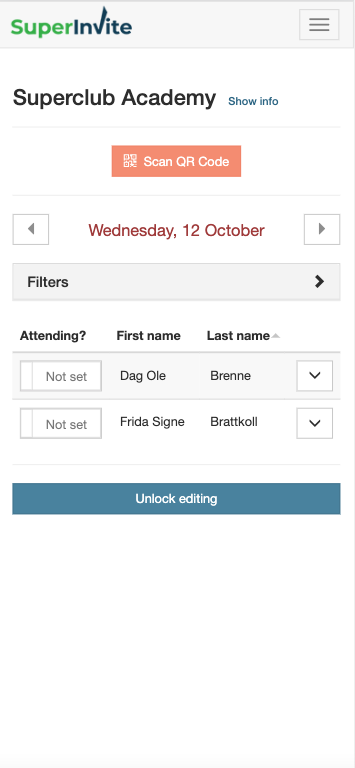
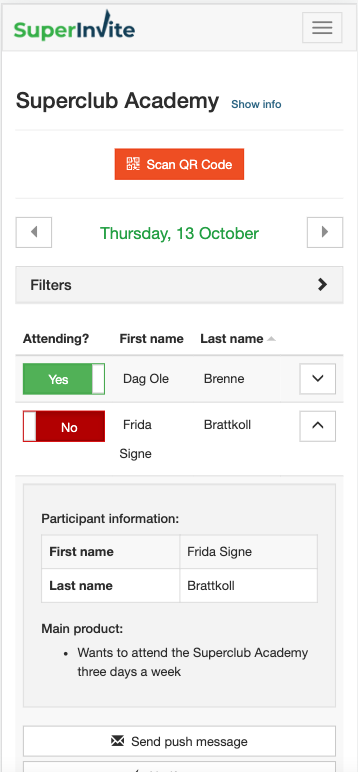
For each individual person in the list, you can make the following choices:
- Mark whether people have shown up or not. The person who made the booking will then get a push notification or email about the attendance status.
- Expand the participant's row to see all the information included in the registration form
- See if the participant has let you know in advance whether they're coming or not. In the list, you'll then have an overview of everyone who's said they're not coming.
- Send a personal message to the person who made the booking. They'll get a push notification if they use the Superinvite APP.
It can be a good idea to encourage everyone in the club to download the Superinvite APP, and you'll find it here (copy the link)
- Superinvite for Android – Link to SI App for Android
- Superinvite for iOS (Apple) – Link to SI App iOS
Note: In the Superinvite APP, those who pay can also see all orders, change their payment card, receive invitations, messages, and more.
- At the very bottom of the list, you'll see that you can easily send out attendance status as push notifications. Here you can choose between the following:
- Send attendance status for everyone – Everyone will get a push notification about their child's status
- Send status only for those not attended – Only those who haven't shown up will get a push notification
- Ask everyone for attendance status in advance – This can only be used the same day or for future days. Everyone will then get a push notification/email asking them to go to their Superinvite account and set coming/not coming. This can be especially useful ahead of special days when you know there might be many who won't come, or you can naturally do it every day