
Registration form
For every main product that is added to the cart by those who are to pay for something, a person must register according to the registration form you set up. This is where you define what information you want in your lists later, after people have registered and paid.
To get the best and most processable data foundation possible, you can define your fields as types according to what kind of information they should handle. By defining the correct type, you ensure that, for example, you can filter by Date field in reports, because everyone enters the date the same way. Below you have an overview of which types of text fields you can choose between:
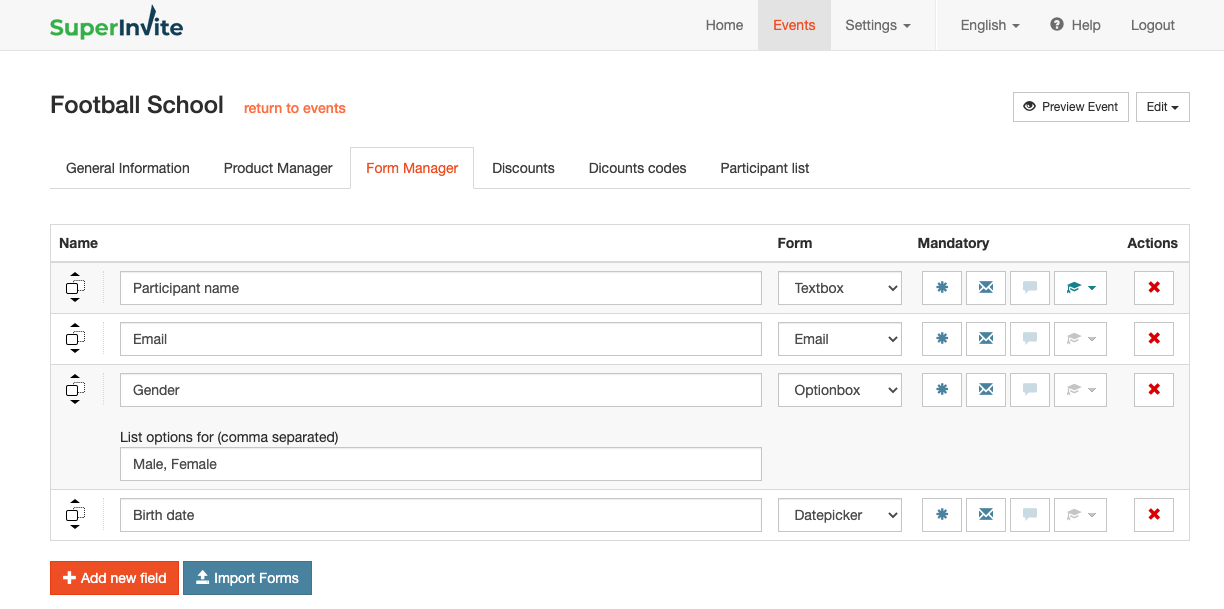
Note: By clicking the icon on the far right that looks like a hat, you can mark the products with which weekday(s) they take place. This way, all participants and the club get an overview of who is coming on which days in the Attendance lists.
This is also important to set if you use Max number per day.
| Field | Description | | --- | --- | | Short text field | Regular short text field, with a maximum of 30 characters. For example, a person's name. | | Options | Here you can choose one option among several you define. For example Gender, Male / Female. | | Checkbox | Here you can choose several options. For example, if you want to indicate which sport you are active in, you can choose several. | | Date | Here the user must set a date. For example date of birth if the invitation concerns training fees. | | Note field | This field allows the user to enter a note, and is in practice the same as Short text field, but allows more text. Up to 250 characters. | | Email field | If you choose Email field, the user must enter an email in the field. We validate this, so that a valid email is always entered in the field. | | Phone field | If you choose Phone field, we validate that a phone number is entered. This makes it easier to simply tap on fields in reports and lists, and go straight to the call function on, for example, your phone. |
You also have the option to make the following choices for each registration field:
- Choose whether it should be required or not
- Include information in the receipt – this is used, for example, when requesting a national ID number, which is not legal to send by email for security reasons.
- Help text – Here you can add a text you define yourself, if, for example, you need to explain something related to the field to the person registering.
- Choose which weekdays the product takes place on. This way, all participants and the club get an overview of who is coming on which days in the Attendance lists.This is also important to set if you use Max number per day.
Note: Think about which fields you need to know about when you are going to work with your lists later. It can save you a lot of time when you need to get a full overview.